A signal box for your AI agents
Approve Claude Code and Codex requests on a second screen
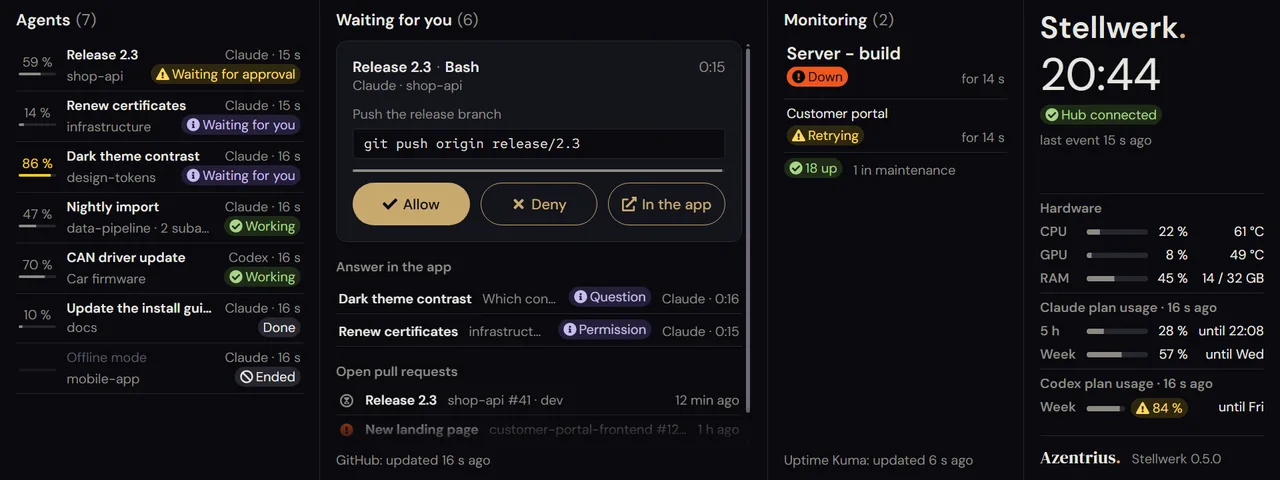
Every running Claude Code and Codex session on a wide second screen. Permission requests show their complete input and can be allowed or denied right there; the app keeps working, and whoever decides first counts.
- Stable
- Version 0.5.1
- Apache-2.0
- Windows 10 & 11
- Claude Code
- Codex
The problem
Long runs stop at a window you cannot see.
Long agent runs stop at a permission request whose window happens to be hidden.
Several sessions at once are hard to keep track of.
Automatic approvals save clicks, but cost control.
Features
What it does
Every session at a glance
Name, project and status of each session, the number of running subagents and how full its context is. The most urgent first.
Requests with their full input
A shell command in full, a file change with path and content, an MCP call with server, tool and parameters. Allow, deny, or leave it to the app.
The app works as before
The Claude app shows its own card at the same time; whoever decides first counts. Without a decision on the display, the app takes over after 60 seconds, for Codex after 30.
What waits for you
Questions and input the agents wait for in the app are listed with how long they have been waiting.
If you like
Open pull requests with their Actions runs, hardware load and temperature, your Uptime Kuma monitors and how much of your plans' limits is used.
Local only
The hub listens on 127.0.0.1 and nowhere else. The display loads nothing from the internet.
How a request goes
| Step | What happens |
|---|---|
| 1 | Claude Code or Codex asks for a permission and sends the request to the Stellwerk hub through a hook. |
| 2 | The display shows it as a card. The Claude app shows its own at the same time, the Codex app only once Stellwerk has answered. |
| 3 | On the display you allow, deny or hand the request to the app. With Claude Code you can also answer in the app; whoever decides first counts. |
| 4 | Without a decision on the display, the app takes over: after 60 seconds for Claude Code, after 30 for Codex. If the hub is not running, both simply ask in the app. |
Security
- Fixed address 127.0.0.1, plus a Windows Firewall rule as a second layer.
- Every hook request needs a token; the display signs in before it gets anything.
- Nothing is allowed automatically: no rules, no "always allow".
- Connections to other machines only to api.github.com and your Uptime Kuma, each only once you set it up.
Install
Installation
Requirements
- Windows 10 or 11
- Node.js 24 (LTS)
- Claude Code: the Claude desktop app or the command line
- Codex, if you like: the Codex app
- Microsoft Edge or another Chromium browser for the display
From a release
Download stellwerk-VERSION.zip and SHA256SUMS from the latest release. In PowerShell, with the version you downloaded:
(Get-FileHash stellwerk-VERSION.zip).Hash    # must match the line in SHA256SUMS
gh attestation verify stellwerk-VERSION.zip --repo Azentrius/stellwerk
Expand-Archive stellwerk-VERSION.zip -DestinationPath .
cd stellwerk-VERSION
npm ci --omit=dev
npm link
Connect Claude Code
- Start the hub:
stellwerk serve. On its first start it creates the token for the hooks. - Connect Claude Code:
stellwerk hooks install. It shows what it adds to your settings and asks before writing. - Restart the Claude desktop app and any terminals that run Claude Code.
- Once, as administrator:
stellwerk installadds the firewall rule. - Open the display on the second screen. To start everything with Windows:
stellwerk autostart install.
Connect Codex (optional)
Stellwerk shows the sessions of the Codex app too, marked “Codex”, and answers their approvals on the display:
stellwerk codex install
It shows what it adds to Codex’ hooks and asks before writing. Restart the Codex app and allow the new hooks there: the hook symbol in its input field opens Review hooks. Codex runs hooks only after that.
How Codex differs from Claude Code:
- The Codex app shows its own approval card only after Stellwerk has answered. So a Codex request waits on the display for 30 seconds (adjustable from 10 to 35) and then goes to the app; In the app hands it over at once.
- With “Approve for me”, Codex’ own reviewer decides; Stellwerk then holds nothing and shows no card.
- If the hub is not running, Codex asks as usual.
stellwerk codex uninstall removes exactly these hooks. Everything about Codex is in the README under Codex.
The README covers the rest: pull requests, hardware values and Uptime Kuma.
Questions
Does it work with the Claude desktop app?
Yes, with Claude Code in the desktop app and on the command line. The app shows its own card, and the first decision counts.
Does it work with Codex?
Yes, with the Codex app, after stellwerk codex install. A Codex request waits on the display for 30 seconds and then goes to the app, because the app shows its own card only after that; “In the app” hands it over at once.
What happens if the hub is not running?
Claude Code and Codex simply ask in the app, without error messages.
Can it allow requests automatically?
No. There are no rules and no "always allow".
Which display do I need?
It is made for 1920×720 and ready for touch; one factor scales every size for other screens.
Does it run on macOS or Linux?
Not yet: Windows 10 and 11 only.
Does it send data to the internet?
No, except to api.github.com for pull requests and to your own Uptime Kuma, each only if you set it up.
How it differs
Other tools bring approvals to the phone or by push, some with automatic approval. Stellwerk stays on your desk and on your machine, and approves nothing on its own.